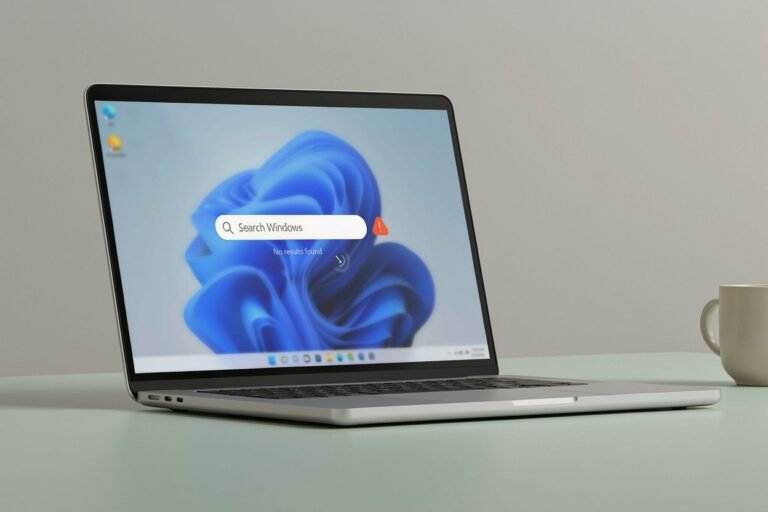
Introduction in Windows 11 Search Not Working
Your computer matters less when you cannot find files or open apps quickly. The search box sits right there on your taskbar, but it does nothing when you type. This happens more often than you might think on modern Windows systems.
You face different problems each time this breaks. Sometimes the search box stays blank forever. Other times results take too long to appear. You might see only partial file lists or nothing at all. These issues stop your workflow completely and waste valuable time every single day.
Most fixes start with simple restarts that cost nothing. You can solve many problems without changing complex system settings. Some users need deeper repairs involving index rebuilding or service checks. Others require profile testing to spot account-specific bugs. Start with basic steps before trying advanced solutions.
Step1: Restore Windows 11 Search with Fast, Low-Risk Fixes
Start with solutions that do not touch your personal data. Confirm whether the problem is temporary before applying any permanent changes. Many search failures resolve after a quick restart of background processes.
1.1 Restart Windows Search from Task Manager
Ending the Search process forces Windows to reload it automatically. This clears stuck states without affecting your files. Press Ctrl + Shift + Esc to open Task Manager immediately. Look for processes named Search, SearchHost.exe, or Windows Search in the Details tab. Select the relevant entry and click End task. Wait a few seconds for the process to restart naturally. Test the taskbar search box to see if typing returns results.
1.2 Restart Windows Explorer and the Computer
Explorer controls the taskbar interface and Start menu components. Restarting it refreshes all shell features including the search function. Open Task Manager again and find Windows Explorer under Processes. Right-click it and select Restart from the context menu. The screen will blink briefly as Explorer reloads itself. Try searching again immediately after the restart completes. Restart the entire computer if the search box remains frozen. Disconnect unnecessary USB devices if the system shows broader interface delays.
1.3 Install Pending Windows 11 Updates
Unresolved bugs or incomplete updates cause many search failures. Microsoft regularly patches these issues through Windows Update releases. Navigate to Settings > Windows Update to check for available updates. Click Check for updates and install anything that appears pending. Some cumulative or quality updates contain specific search component fixes. Restart your computer after installation finishes successfully. Test the search functionality one final time. Update availability depends on your specific Windows 11 version and device configuration.
Step2: Repair Search Automatically with Windows Troubleshooters
Microsoft built diagnostic tools to find and fix search problems automatically. These utilities check services, permissions, and indexing configurations without manual work. Use them before attempting any registry edits or system file repairs.
2.1 Run the Search and Indexing Troubleshooter
This tool identifies common indexing setup errors and misconfigurations. Open Settings > System > Troubleshoot > Other troubleshooters on your device. Find Search and Indexing in the list of available tools. Select Run and describe what happens when you search. Common symptoms include files not appearing, slow performance, crashes, or incomplete result sets. Follow the recommended fixes presented by the wizard. Restart Windows if prompted after applying corrections. Note that Microsoft moved some legacy troubleshooters in newer Windows releases, so the option may not appear everywhere.
2.2 Repair the Windows Search App
Re-registering or repairing the Search component helps when the interface is damaged. Open Settings > Apps > Installed apps and locate Windows Search. Choose Advanced options from the app details page. Try Repair first since it preserves most app data. Explain that Reset removes cached preferences and search history instead. Restart your computer and test the search interface thoroughly afterward. This approach works well when indexing remains intact but the UI fails.
2.3 Check Search Permissions and Account Access
Search behaves differently when accounts lack folder access or have corrupted profiles. Confirm that you can open the folders you intend to search manually. Test the search box from both the taskbar and File Explorer windows. Verify whether the problem affects only your current Windows account. Try signing into another user account to compare behavior. Avoid changing permissions on protected system folders unless necessary. Most search issues stem from accessibility problems rather than core service failures.
Step3: Rebuild the Windows 11 Search Index to Restore Missing Results
Rebuilding the index solves problems where search opens but finds no files. The catalog may become outdated, incomplete, or corrupted over time. This process removes old entries and creates a fresh database entirely.
3.1 Confirm Which Locations Windows Search Indexes
Search cannot return files stored outside indexed areas reliably. Open Control Panel and select Indexing Options from the view. Review the complete list of currently indexed locations carefully. Click Modify to add missing folders, drives, or libraries you need. Skip large temporary folders and constantly changing system directories unless required. Cloud storage folders depend on whether files download locally first.
3.2 Rebuild the Search Index
Click Advanced in the Indexing Options window to access deep settings. Choose Rebuild under the troubleshooting section near the bottom. Keep your device powered on throughout the entire process. This operation may take several hours depending on file volume. Monitor progress using Indexing Options to watch the item count change. Understand that search results stay incomplete until rebuilding finishes entirely.
3.3 Optimize File and Search Settings
Correct scope and content settings prevent configuration errors from mimicking broken search. Open Settings > Privacy & security > Searching Windows to review modes. Classic mode indexes standard user folders while Enhanced covers broader locations. Exclude temporary folders and development directories unless document content search is essential. Enable file-content indexing only for types requiring inside-document searches.
Step4: Restart Services and Repair Windows System Components
Use these steps when search fails across multiple applications or contexts. Create a restore point before making system-level changes. Back up critical data if possible to protect against accidental losses.
4.1 Restart the Windows Search Service
Press Win + R, type services.msc, and press Enter to open the console. Locate Windows Search in the service list below others. Ensure the status shows Running and startup type is Automatic. Click Restart to force a fresh service initialization. If it stops immediately, note any error messages displayed. Do not disable Windows Search permanently if file lookup remains important.
4.2 Repair Windows Files with System File Checker
Corrupted system files break search components and related features. Open Windows Terminal (Admin) or Command Prompt with elevated privileges. Type sfc /scannow and wait for verification to finish completely. Restart your machine once scanning concludes successfully. Interpret results by checking whether corruption was found or fixed. Some cases show violations that SFC could not fully repair on first run.
4.3 Repair the Component Store with DISM
DISM fixes the Windows update package store that SFC relies upon. Run DISM /Online /Cleanup-Image /RestoreHealth from an elevated terminal. Restart the computer after the command finishes processing. Execute sfc /scannow again if search still fails afterward. Always use administrator privileges and never interrupt either tool mid-operation.
Step5: Fix User-Profile, Update, and Configuration Conflicts
Search problems starting after recent changes often involve profile corruption or software conflicts. A second account reveals whether faults are system-wide or isolated.
5.1 Test Search with a New Windows User Account
Add a local test account via Settings > Accounts > Other users. Sign in separately and test taskbar search plus Start menu functionality. Check whether File Explorer search also works normally. If search functions properly in the new account, migrate files and settings instead of rebuilding everything. Focus profile repairs on the affected account specifically rather than sweeping system changes.
5.2 Review Recent Updates, Drivers, and Software Changes
Failed search following an update points directly to compatibility issues. Open Settings > Windows Update > Update history to check installations. Remove third-party customization tools temporarily for testing purposes. Ask antivirus vendors about safe exclusions for search-related processes. Do not uninstall security updates unless manufacturer guidance supports doing so. Third-party start menu tweaks often interfere with native functionality.
5.3 Use System Restore or Repair Options When the Failure Persists
System restore works if restore points exist around the failure date. Consider Reset this PC with keep-files option when other methods fail. Back up documents, browser passwords, and license keys beforehand. Explain the difference between keeping personal files versus full removal. Follow manufacturer instructions for business-managed devices or domain environments.
Step6: Identify Search-Specific Symptoms and Choose the Right Fix
Matching symptoms to causes prevents unnecessary advanced repairs on unrelated issues. Each pattern points toward distinct underlying problems needing targeted solutions.
6.1 When Search Opens but Returns No Files
Focus on indexing coverage, index health, file location, and search depth. Verify the target folder appears in indexing locations lists. Rebuild the index completely if results remain empty. Check cloud file status for offline availability requirements. Try finding the same filename using File Explorer directly. Confirm the extension type matches enabled indexing categories.
6.2 When the Search Box Is Blank, Frozen, or Closes
Target Search processes, Explorer stability, pending updates, and app integrity. Restart SearchHost.exe alongside Windows Explorer in Task Manager. Install any available Windows updates immediately. Repair or reset the Windows Search app when listed under installed programs. Run SFC and DISM if multiple components show similar failures. Watch for Start menu and taskbar issues occurring together with search problems.
6.3 When Search Is Slow or Uses Excessive Resources
High indexing activity normalizes after major rebuild operations. Persistent resource usage suggests oversized indexes or damaged catalogs. Check whether indexing still runs actively in Indexing Options. Reduce indexed locations and exclude temporary folders from scanning. Allow indexing to complete fully before judging performance metrics. Investigate disk or memory saturation from unrelated Windows Update tasks.
Step7: Confirm the Fix and Prevent Windows 11 Search Not Working Problem
Verify search works across different apps and file types before declaring success. Maintain proper maintenance practices to reduce recurring failures going forward.
7.1 Test Search Across Apps and File Types
One successful query does not guarantee all components function correctly. Search for a known application from the taskbar first. Type a document name into File Explorer to check file retrieval. Search inside at least one indexed folder for comprehensive validation. Create a test file, then search for its name again. Watch results update immediately after creating or renaming items.
7.2 Verify Indexing and Service Health
Confirm the Windows Search service runs continuously without stopping unexpectedly. Review Indexing Options for paused states or unexpected location lists. Check services.msc to ensure Windows Search stays active. Restart your machine once and repeat a basic search test. Ensure fixes survive reboot cycles before considering the problem resolved.
7.3 Prevent Recurring Search Failures
Keep Windows 11 updated regularly through automatic notifications. Avoid excluding user folders that genuinely need searchable access. Organize important files within standard indexed locations consistently. Let rebuilds finish completely after major migrations or updates. Back up all data before running advanced repair procedures or resets.
FAQs About Windows 11 Search Not Working
1. Why does my Windows 11 search bar Not working suddenly?
Updates sometimes cause small bugs that make things stop. You should restart your full computer before trying other fixes.
2. How do I add back the search icon?
Right click the main taskbar area right near your clock. Click the full menu option to change how items appear.
3. Does restarting the search service help much?
Yes, stopping the background service clears old data very fast. Run system commands as admin to fix the app code.
4. Are corrupt files making search fail?
Bad system files often block tools from running well. You can check disk health using built-in repair tools.
5. Is a fresh update the best fix?
Installing new software patches often solves hard problems quickly. Backup your data before installing any large update pack.
Conclusion: Restore Windows 11 Search Without Unnecessary System Changes
Missing results typically indicate indexing gaps while unresponsive interfaces point to service or profile problems. Restart Search and Explorer first before attempting deeper repairs. Install pending updates early since they often contain critical fixes. Run the Search and Indexing troubleshooter whenever available for quick diagnostics. Check indexed locations and rebuild indexes for empty or outdated results.
Restart the Windows Search service if basic steps fail. Use SFC and DISM for potential Windows component corruption. Test new user accounts to separate profile issues from system failures. Backup data before attempting System Restore, Reset this PC, or recovery actions. Most Windows 11 search problems resolve by isolating whether the fault affects interface, index, service, profile, or core system files.