introduction in windows 11 taskbar not working
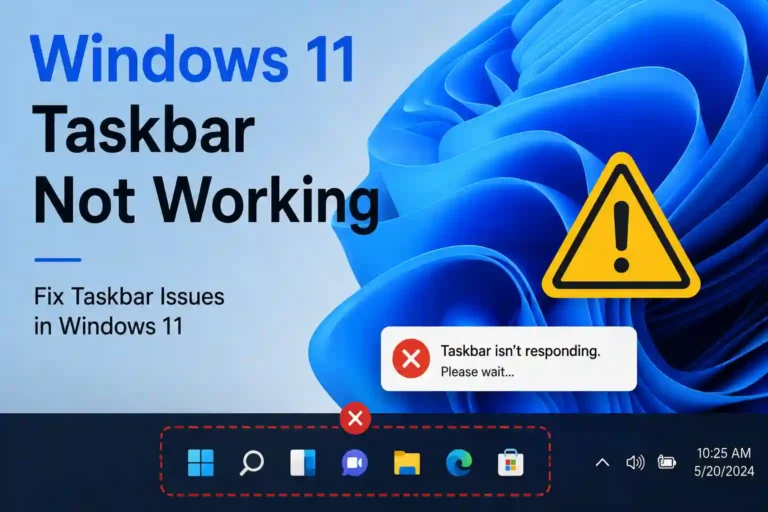
Your Windows 11 taskbar holds everything—Start menu, Search, pinned apps, notifications, Wi-Fi, sound controls, battery status, and system time. When it stops working, you lose access to your entire computer’s core functions. The taskbar might freeze completely, become invisible, show blank spaces where icons should be, keep loading endlessly, disappear after sign-in, or refuse to respond to clicks. These failures block your workflow and create frustration.
Menu names and available options can change slightly depending on your Windows 11 version and installed updates. Start with low-risk fixes that don’t alter personal files or system settings. If those don’t work, move toward system repairs, profile troubleshooting, and reset options. This methodical approach helps you restore taskbar function without unnecessary data loss.
Step1: Identify the Taskbar Problem Before Applying a Fix
Matching your symptom to the likely cause helps you avoid unnecessary or destructive troubleshooting. A completely unresponsive taskbar differs from isolated failures in specific areas.
Check Whether the Taskbar Is Frozen, Missing, or Only Partially Working
Distinguish between a completely unresponsive taskbar and isolated failures. Symptoms vary. Clicking icons might produce no response at all. The taskbar could appear visible but fail to refresh when new programs open. Some users report the taskbar disappears entirely after signing in. The clock, network, volume, or battery indicators might be missing while other elements work. Pinned applications might open incorrectly or fail to launch entirely. The taskbar might flash, reload constantly, or become transparent.
These visual glitches often point toward different underlying issues. A user on Microsoft’s tech community forum described unrecognized icons appearing in their Windows 11 taskbar, with both Edge and Chrome losing their recognizable icons. This created confusion during work sessions. Blank icons persisted despite multiple troubleshooting attempts documented in community discussions.
Determine Whether the Issue Affects One Account or the Entire PC
Testing another Windows user account helps identify whether the cause is a damaged user profile or a system-wide Windows problem. Restart your computer and test the taskbar immediately after signing in. Connect an external display if the issue seems limited to one monitor. Create and test a new local user account when practical.
Note whether the problem started after a specific Windows update, driver installation, customization tool, or system change. One user reported their taskbar becoming randomly unresponsive after monthly cumulative updates. They discovered the issue stemmed from a GPU driver conflict, not Windows itself. Their AMD Radeon RX 7900 XT had problems with certain Windows updates. Manually installing the latest driver from the manufacturer’s website resolved the randomness.
Step2: Restart Windows Components That Control the Taskbar
These fast, non-destructive recovery steps often restore the taskbar without changing personal files or system settings.
Restart Windows Explorer from Task Manager
Windows Explorer manages the desktop shell, including the taskbar, Start menu interface, File Explorer, and desktop elements. Press Ctrl + Shift + Esc to open Task Manager. Select Windows Explorer under running processes. Choose Restart task. Wait for the desktop and taskbar to reload.
If the standard shortcut doesn’t work, use Ctrl + Alt + Delete and select Task Manager from the menu. This approach works when other methods fail.
Restart Related Windows Processes
Sometimes restarting Explorer alone doesn’t resolve a frozen or blank taskbar. Investigate these processes carefully: Start, Search, Shell Infrastructure Host, and Runtime Broker. Don’t end unfamiliar system processes without knowing their purpose. Windows may automatically relaunch some components after you end them.
A user experiencing desktop and taskbar unresponsiveness after updates found that right-clicking the taskbar to open Task Manager worked, but the Task Manager itself wouldn’t start. This indicates deeper shell issues.
Sign Out, Restart, or Shut Down Completely
A full session reset can clear temporary shell failures that survive a simple application restart. Sign out and sign back in. Restart Windows through Task Manager when the Start menu is inaccessible. Perform a complete shutdown, wait briefly, and power the device back on. Disconnect unnecessary peripherals during testing if they may be interfering with display or input behavior.
Performing a clean restart differs from a standard reboot. It ensures all processes start fresh.
Step3: Repair Windows System Files and Built-In Components
Move from quick fixes to system-integrity checks when the taskbar remains broken after restarting Windows components.
Run the System File Checker Tool
System File Checker scans protected Windows files and attempts to replace corrupted versions. Open Task Manager with Ctrl + Shift + Esc. Select Run new task. Enter cmd. Enable the option to create the task with administrative privileges. Run sfc /scannow. Restart the computer after the scan completes.
The result message indicates whether corrupted files were found and repaired. Users on support forums often include sfc /scannow in their troubleshooting steps for blank taskbar icons.
Use DISM to Repair the Windows Image
Deployment Image Servicing and Management can repair the Windows component store that SFC relies on. Run DISM /Online /Cleanup-Image /RestoreHealth in an administrative command prompt. After DISM finishes, run sfc /scannow again. The repair may require an active internet connection and can take time. One support answer on Microsoft’s forum specifically recommends DISM when there’s an issue with the Windows disk image causing startup problems.
Reinstall or Repair Windows Shell Packages Carefully
These advanced PowerShell-based repair options come into play after simpler solutions fail. Re-register built-in Windows apps and shell components through Windows PowerShell. Create a restore point or backup before changing system packages. Avoid commands copied from untrusted websites. Restart Windows after package repair. Command availability and effectiveness may differ across Windows 11 builds.
Step4: Resolve Updates, Drivers, and Software Conflicts
Taskbar failures can stem from recent Windows updates, graphics drivers, third-party customization tools, or background utilities.
Install Pending Windows 11 Updates
Microsoft issues fixes for shell, Start menu, notification, display, or taskbar problems through cumulative updates. Open Settings > Windows Update using keyboard shortcuts if the taskbar is inaccessible. Select Check for updates. Install available quality and cumulative updates. Restart the device after installation. Check update history if the taskbar stopped working immediately after an update.
Some users report specific updates causing taskbar issues. One person blocked monthly cumulative updates to prevent unresponsive behavior after login.
Uninstall a Suspected Recent Update
Rolling back an update may be appropriate when the problem began immediately after installation. Review Settings > Windows Update > Update history. Open the option to uninstall updates. Remove only the update associated with the onset of the issue. Restart and monitor the taskbar. Uninstall options may be limited. Security updates shouldn’t be removed casually.
Remove Taskbar Customization and Conflicting Utilities
Third-party apps that modify the Start menu, taskbar layout, system tray, window behavior, or desktop appearance can cause conflicts. Temporarily disable or uninstall taskbar replacement tools. Reverse unsupported registry tweaks. Disable unnecessary startup applications through Task Manager. Test Windows with a clean boot to isolate background software.
Update or roll back graphics drivers when the taskbar issue includes flickering, display glitches, or multiple-monitor problems. The AMD Radeon driver conflict mentioned earlier shows how graphics drivers can affect shell stability.
Step5: Restore Taskbar Access by Testing the User Profile
A damaged or misconfigured Windows user profile can make the taskbar fail even when the operating system itself functions normally.
Create and Test a New Windows User Account
A separate account confirms whether the problem is profile-specific. Open Settings > Accounts > Other users through keyboard navigation. Add a local or Microsoft account. Sign into the new account. Test Start, Search, pinned applications, system tray controls, and notifications. A working taskbar in the new account points toward profile corruption or damaged per-user settings.
On Spiceworks, an IT professional resolved blank taskbar icons by testing with a different user profile. The issue disappeared under a new account, confirming the original profile was at fault.
Move Personal Files to a Working Profile
If the new account resolves the taskbar problem, migrate safely. Back up files from Desktop, Documents, Downloads, Pictures, and other required folders. Reinstall or reconnect applications as needed. Reconfigure browser profiles, cloud storage, email, and accessibility settings. Keep the old profile temporarily until all data is verified. Don’t delete the original account before confirming that important files and application data have been transferred.
Check Permissions and Profile-Related Errors
Advanced diagnostics help when a new profile works but migration or account access fails. Review Event Viewer logs related to user profiles, Explorer, and Windows Shell. Check whether antivirus or endpoint-security software is blocking shell processes. Consult organizational IT policies on managed work devices. Avoid manual registry edits unless a documented Microsoft support procedure requires them.
Step6: Use Recovery Options When the Taskbar Still Will Not Respond
Present higher-impact solutions in increasing order of risk, with clear backup and data-preservation guidance.
Restore Windows to an Earlier Working State
System Restore can reverse certain driver, registry, and software changes without normally removing personal files. Open System Restore through Task Manager or Windows Recovery Environment. Choose a restore point created before the taskbar failure. Review affected programs and drivers before confirming. Restart and test the taskbar after restoration. System Restore may not be available if protection was disabled or no restore point exists.
One user experiencing random unresponsiveness after updates used System Restore to remove problematic updates, which temporarily fixed their issue.
Run Startup Repair or Enter Safe Mode
Windows Recovery Environment helps determine whether startup software, drivers, or services are causing the failure. Enter recovery options through Settings > System > Recovery or forced recovery after failed starts. Use Startup Settings to launch Safe Mode. Test the taskbar with third-party startup components disabled. Remove a recently installed driver or application from Safe Mode when necessary.
Reset or Repair Windows While Preserving Personal Files
Reserve this option for persistent failures after system repair, update troubleshooting, and profile testing. Choose Reset this PC with the option to keep personal files. Understand that installed applications, drivers, and many settings may be removed. Back up personal files, browser data, license information, and authentication methods first. Compare local reinstall and cloud download options where available. Confirm the taskbar works before restoring all third-party utilities.
Step7: Prevent Future Windows 11 Taskbar Failures
Practical maintenance habits reduce the chance of recurring shell problems.
Keep Windows, Drivers, and Core Applications Updated
Apply stable Windows updates and maintain graphics, chipset, and device drivers from trusted sources. Check Windows Update regularly. Use official manufacturer websites for drivers when Windows Update is insufficient. Avoid unofficial modified Windows builds and system-tuning tools.
Back Up Data Before Major System Changes
Backup protection matters before feature updates, registry changes, driver replacements, or system resets. Use cloud backups and external storage. Employ File History or another reliable backup method. Export browser data and save recovery codes for important accounts.
windows 11 taskbar not working
Limit Unsupported Taskbar Modifications
Registry tweaks, shell replacements, and aggressive debloat scripts can interfere with Windows 11 updates and built-in components. Create a restore point before customization. Track changes made to the system. Remove one customization at a time when troubleshooting. Choose tools that explicitly support the installed Windows 11 version.
windows 11 taskbar not working
FAQs About windows 11 taskbar not working
Why is my Windows 11 taskbar frozen and unclickable?
A frozen taskbar is often due to a crashed system process. Restart the “Windows Explorer” process via Task Manager to fix it quickly. Open Task Manager, find “Windows Explorer,” and click “Restart.”
windows 11 taskbar not working
How do I fix a Windows 11 taskbar that won’t auto-hide?
First, check your settings to make sure auto-hide is actually turned on. Go to Settings > Personalization > Taskbar and toggle the “Automatically hide the taskbar” option off and then on again.
Can I fix the taskbar without restarting my whole computer?
Yes, you usually can. Using the Task Manager to restart Windows Explorer, as mentioned above, is the fastest method. This restarts just your desktop interface without a full system reboot.
Windows 11 taskbar disappeared, how do I get it back?
Press the Windows key on your keyboard; this often brings it back. If that fails, try moving your mouse to every edge of the screen, as it may be set to auto-hide and is waiting off-screen.
windows 11 taskbar not working
Will updating Windows 11 fix my broken taskbar?
It might, especially if the problem is caused by a known bug. Check for updates in Settings > Windows Update. Installing the latest patches can resolve many common system issues, including taskbar bugs.
My taskbar icons are missing, what should I do?
This is usually a simple settings glitch. Right-click the taskbar, choose “Taskbar settings,” and look under “Taskbar behaviors.” Ensure the “Select which icons appear on the taskbar” option is set correctly for your apps.
windows 11 taskbar not working
Conclusion in windows 11 taskbar not working
Identify the exact taskbar symptom first. Restart Windows Explorer and related shell components. Restart or sign out of Windows. Run DISM and SFC to repair corrupted system files. Install or roll back relevant updates. Remove conflicting customization tools. Test a new user profile. Use System Restore, Safe Mode, or Reset this PC only when necessary.
Back up files before profile migration, recovery operations, or a Windows reset. A taskbar working in a new user account usually indicates a profile-specific issue. Failure across accounts may suggest system files, updates, drivers, or hardware-related display problems.
Start with reversible fixes. Progress methodically. Reserve reset or reinstall procedures for cases that resist standard repairs. Your taskbar doesn’t have to stay broken, and you don’t have to lose your data to fix it.